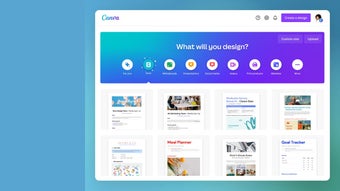



Download Canva – Free Graphic Design Tool, Templates & AI Features
Overview
Canva has quickly risen from a modest online design platform to a global powerhouse for creating visual content. Whether you’re a small‑business owner crafting a social‑media post, a teacher designing a classroom handout, or a seasoned marketer assembling a full‑scale brand campaign, Canva’s free version provides a surprisingly robust set of tools. The application lets you build presentations, posters, flyers, infographics, videos, logos, resumes, and even animated graphics without needing a pricey subscription to Adobe Creative Cloud.
Its intuitive drag‑and‑drop interface, combined with millions of stock photos, vectors, fonts, and pre‑made templates, makes professional‑grade design accessible to anyone with an internet connection. While the free tier includes a vast library of assets, Canva Pro unlocks premium images, brand kits, AI‑powered enhancements, and advanced export options such as transparent PNGs and animated GIFs. In short, Canva is a one‑stop shop for designers of all skill levels, offering a secure, cloud‑based workspace that keeps your projects synced across Windows, macOS, Android, and iOS devices.
Key Features & AI‑Powered Enhancements
What makes Canva stand out?
- Millions of templates across 100+ categories, from business cards to Instagram reels.
- Extensive stock library: photos, vectors, icons, illustrations, and audio tracks.
- AI Assistant that suggests relevant graphics, colors, and fonts based on your design.
- Magic Write – an AI copywriting helper that drafts headlines, captions, and presentation summaries in 18 languages.
- Magic Resize – instantly adapt a design for different platforms with one click.
- Magic Eraser & Magic Edit – remove unwanted objects or replace elements without leaving a trace.
- Beat Sync – automatically align video clips to a chosen soundtrack for polished video content.
- Translate feature – convert text in designs to over 100 languages, perfect for global campaigns.
- Brand Hub – centralize brand colors, logos, and fonts for consistent team output.
- Interactive charts, one‑click animations, and AI‑driven whiteboards for brainstorming sessions.
The recent AI upgrades have taken Canva from a simple template editor to a creative co‑pilot. For example, the Magic Design tool analyzes an uploaded image and proposes tailored layout options, cutting the time needed to start a new project in half. Meanwhile, the new Draw feature lets you sketch basic shapes that the engine automatically refines into vector‑ready graphics.
These intelligent assistants not only accelerate the design workflow but also ensure a cohesive aesthetic, even for users with limited design experience. The platform’s commitment to accessibility is evident in its Alt‑Text support, enabling visually impaired collaborators to understand image content through automatically generated descriptions. Whether you need a quick social media story or a complex multi‑page brochure, Canva’s feature set delivers a blend of simplicity and power that rivals traditional desktop software.
Installation, Setup & Compatibility
Getting Started on Any Device
Canva is a cloud‑first solution, which means you can begin designing directly in your web browser without any installation. For users who prefer a native experience, Canva offers dedicated apps for Windows 10/11, macOS 10.13+, Android 6.0+, and iOS 13+. The download process is straightforward:
- Visit Canva.com and click “Sign up” to create a free account using email, Google, or Facebook.
- Choose “Download Canva” from the footer links if you want the desktop app, then run the installer and follow the on‑screen prompts.
- On mobile, locate “Canva” in the App Store or Google Play, tap “Install,” and log in with your existing credentials.
Once installed, the app automatically syncs with your cloud workspace, ensuring that projects are available across all devices. The software supports Windows, macOS, Android, and iOS, making it a truly cross‑platform solution (Windows, macOS, Android, iOS). Updates are delivered seamlessly through the respective app stores or via the web platform, guaranteeing you always have the latest AI features and security patches. Because Canva stores all assets on encrypted servers, you can trust that your designs remain private and secure, even when collaborating with teammates or clients. For enterprises, the platform also integrates with single sign‑on (SSO) providers like Okta and Azure AD, simplifying user management and enhancing data protection.
Pros, Cons & Frequently Asked Questions
Pros
- Free tier offers a massive library of templates and assets.
- AI tools (Assistant, Magic Write, Magic Eraser) speed up the creative process.
- Cross‑platform compatibility ensures work is accessible on any device.
- Intuitive drag‑and‑drop UI suitable for beginners and professionals alike.
- Robust collaboration features: comments, sharing links, and brand kits.
Cons
- Limited pixel‑level control compared to Adobe Photoshop or Illustrator.
- Advanced vector editing (pen tool, custom brushes) is missing.
- Premium assets and some AI features require a paid subscription.
- Export options for high‑resolution print files are restricted in the free plan.
- Internet connection required for full functionality; offline mode is limited.
FAQ
Is Canva truly free, or are there hidden costs?
Canva offers a generous free plan that includes access to millions of templates, photos, and basic editing tools. However, premium elements (e.g., certain stock images, brand kits, AI features) are locked behind Canva Pro, which costs $12.99 / month (or $119.99 / year).
Can I use Canva for commercial projects?
Yes. Both the free and Pro plans allow commercial use of designs created with Canva, provided you comply with the licensing terms for any premium assets you may purchase.
How does Canva handle file export and print quality?
Free users can export PNG, JPG, and PDF files, but high‑resolution PDFs with bleed settings are limited to Pro accounts. For professional printing, upgrading to Canva Pro ensures access to CMYK‑compatible PDFs and transparent PNGs.
Is there an offline mode for Canva?
The desktop app offers a limited offline mode that lets you edit previously opened projects. Full functionality, especially AI tools and asset library access, requires an internet connection.
How secure is my data on Canva?
Canva uses SSL encryption for data in transit and stores files on encrypted servers. Enterprise accounts benefit from SSO, audit logs, and data residency options to meet stricter compliance requirements.
Overall, Canva delivers a powerful, user‑friendly design experience that rivals many paid alternatives. Its AI‑driven features and massive template library make it especially appealing for small businesses and educators, while the Pro plan adds enough depth for freelancers and marketing teams. The main drawback remains the lack of advanced vector editing, which may push professional illustrators toward more specialized tools. Nonetheless, for anyone seeking a secure, cloud‑based design solution that works across Windows, macOS, Android, and iOS, Canva is a top choice.
Conclusion & Call to Action
Canva’s blend of free accessibility, AI‑enhanced creativity, and cross‑platform compatibility makes it one of the most compelling graphic design tools on the market today. Whether you’re crafting a quick Instagram story, developing a full brand kit, or producing a video presentation, Canva equips you with the right resources without the steep learning curve of traditional software. For casual creators, the free tier is more than sufficient to produce polished designs.
Power users and agencies will appreciate the added flexibility of Canva Pro, which unlocks premium assets, advanced export options, and a suite of collaboration tools. Ready to elevate your visual content? Download Canva now, sign up for a free account, and explore the world of limitless design possibilities.



.png)



